
Fortnite Crew Subscription Cancellation Guide
Discover how to cancel Fortnite Crew subscription and manage V-Bucks payout changes with our essential, step-by-step guide for all platforms.
Fortnite Crew is a monthly subscription service with auto-renew enabled by default. As part of this subscription service, you receive new Crew Pack cosmetics every month, an initial 800 V-Bucks (which were previously 1,000 V-Bucks until June 6, 2026) with a billing period of every 30 days, and access to other active passes like Battle Pass, OG Pass, LEGO Pass, Music Pass, and Rocket League Rocket Pass Premium all for 11.99 per month. A lot of players are reconsidering whether still to subscribe to Fortnite Crew, now that Epic has reduced the V-Bucks Payout for each billing cycle from 1,000 to 800, which means that they are going back to their budgets again to review their current subscription status. For those looking to cancel their Fortnite Crew subscription, this guide will review how to cancel Fortnite Crew on all platforms, what happens when cancelling, and most frequently asked questions regarding the billing process.
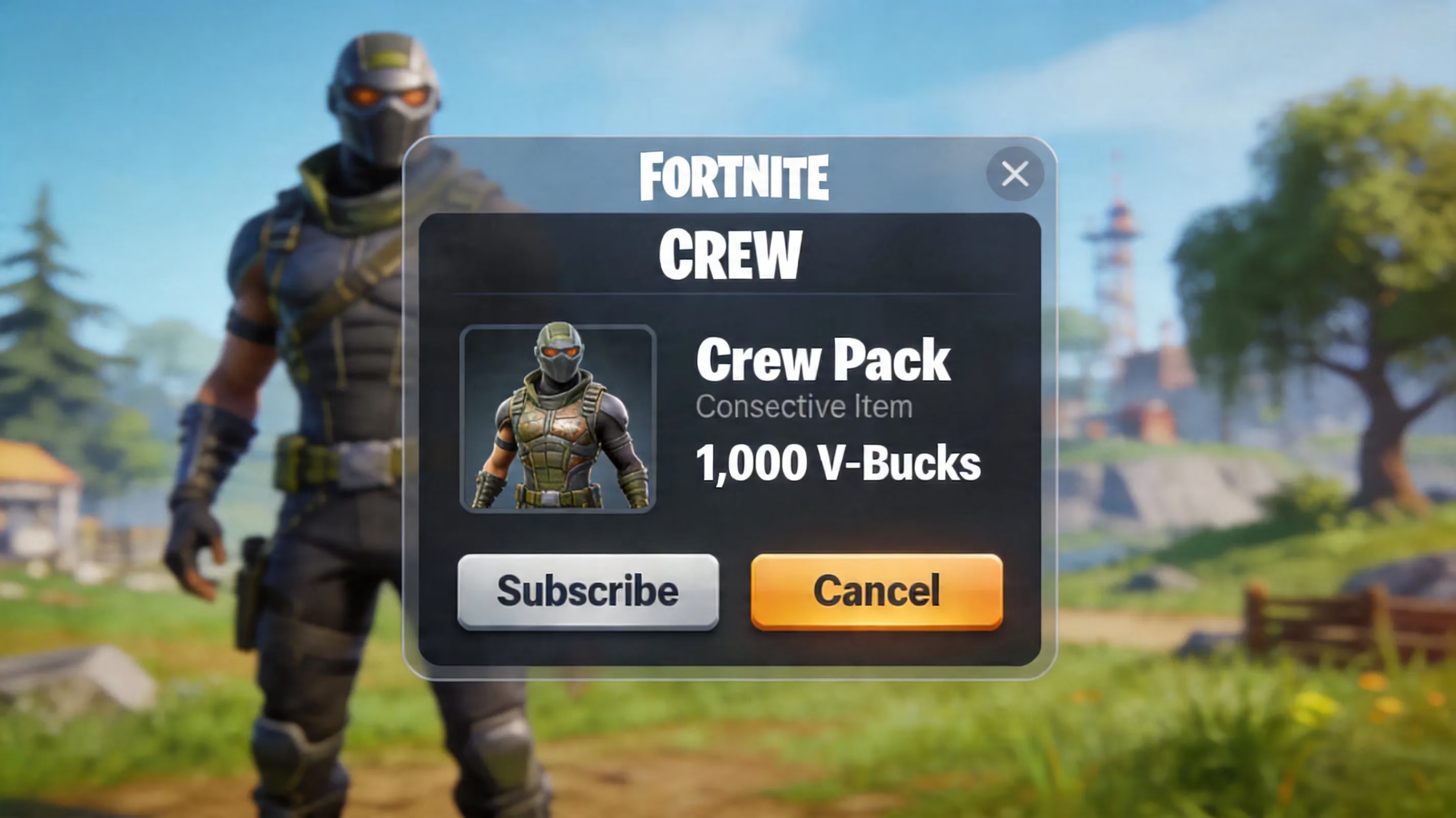
Fastest Method of Cancelling Fortnite Crew
The first thing to know is that you need to cancel Fortnite Crew through the same shop or platform where you purchased your subscription. If you purchased your subscription via PlayStation, then you cannot just cancel via the Epic Games website. This is why the cancellation option may be greyed out or look like it is not available.
Another important note is that cancelling Fortnite Crew does not result in the immediate end of your Fortnite Crew subscription benefits. When you cancel your Fortnite Crew subscription, you are just preventing the auto-renew from happening, and the subscription will still remain active until the end of your current billing period. It’s a great practice to always verify your next billing date in your account settings first before taking any action such as canceling a service so you are aware of how much time you have left on your subscription. After completing the cancellation process, you should return to the page that shows your account details and verify that it says ‘Cancelled’ or ‘Recurring billing is off’ – that confirmation that you have received is the only verification you will receive from Epic Games that you have successfully completed the cancellation process.
How to Cancel Fortnite Crew on PC and Consoles
Epic Games / PC
If you have subscribed to Fortnite Crew through Epic Games directly, there are three different methods available to you for canceling your subscription. The easiest of the two methods is by using a web browser. Simply go to epicgames.com/account, log into your account, click the ‘Subscriptions’ option in the left navigation bar, click on the gear icon next to Fortnite Crew, and select ‘Cancel Subscription’ from there. Follow all instructions provided.
Additionally, if you would like to try another method, you can cancel your Fortnite Crew subscription through the game itself. To do so, go to your Fortnite lobby, click the ‘Passes’ tab at the top of the screen, locate ‘Manage Subscription’ under the Fortnite Crew section, select ‘Cancellation Info,’ and follow the directions provided. As a third method if the other methods do not work for any reason, you can use the Epic Games Store launcher by clicking your profile icon at the bottom left of the screen, selecting ‘Account,’ clicking the ‘Subscriptions’ tab, finding Fortnite Crew, and selecting ‘Cancel.’
Xbox
The cancelation process for an Xbox account occurs through your Microsoft account and not through Fortnite directly. To cancel your subscription, go to account.microsoft.com/, log into your account, click on ‘Services & Subscriptions,’ locate Fortnite Crew, click ‘Manage,’ and finally select ‘Turn off recurring billing.’ You may alternatively manage your subscription to Fortnite Crew from your console. Press the Xbox button, navigate to Profile & System > Settings > Account > Subscriptions, and select Fortnite Crew to manage your subscription.
Players of Xbox systems should also be aware of the overlap with Xbox Game Pass Ultimate. If you have access to Fortnite Crew as part of that subscription instead of a separate monthly subscription service, then no separate billing entry for Fortnite Crew exists and cancelling Fortnite Crew will only occur when your Xbox Game Pass Ultimate subscription is ended.
PlayStation / Nintendo Switch
For PS5: Go to Settings > Users and Accounts > Accounts > Payment and Subscriptions > Game and App Services. Locate Fortnite from the list, find the Fortnite Crew entry, and select Turn Off Auto-Renew.
For PS4: Go to Settings > Account Management > Account Information > Services List. Locate Fortnite Crew and turn off auto-renew from there.
For Nintendo Switch: Access the Nintendo eShop. Select your account profile icon in the upper right. Select Your Subscriptions from the eShop. Locate Fortnite Crew and select Turn Off Automatic Renewal.
You can also change your automatic renewal through the web at ec.nintendo.com/my/rights. Make sure to sign in to the account used to originally purchase the subscription. If you’re using a different profile, a family account, or secondary user, you will not have Fortnite Crew listed in your subscriptions. ### Instructions to Cancel Fortnite Crew on Mobile Device
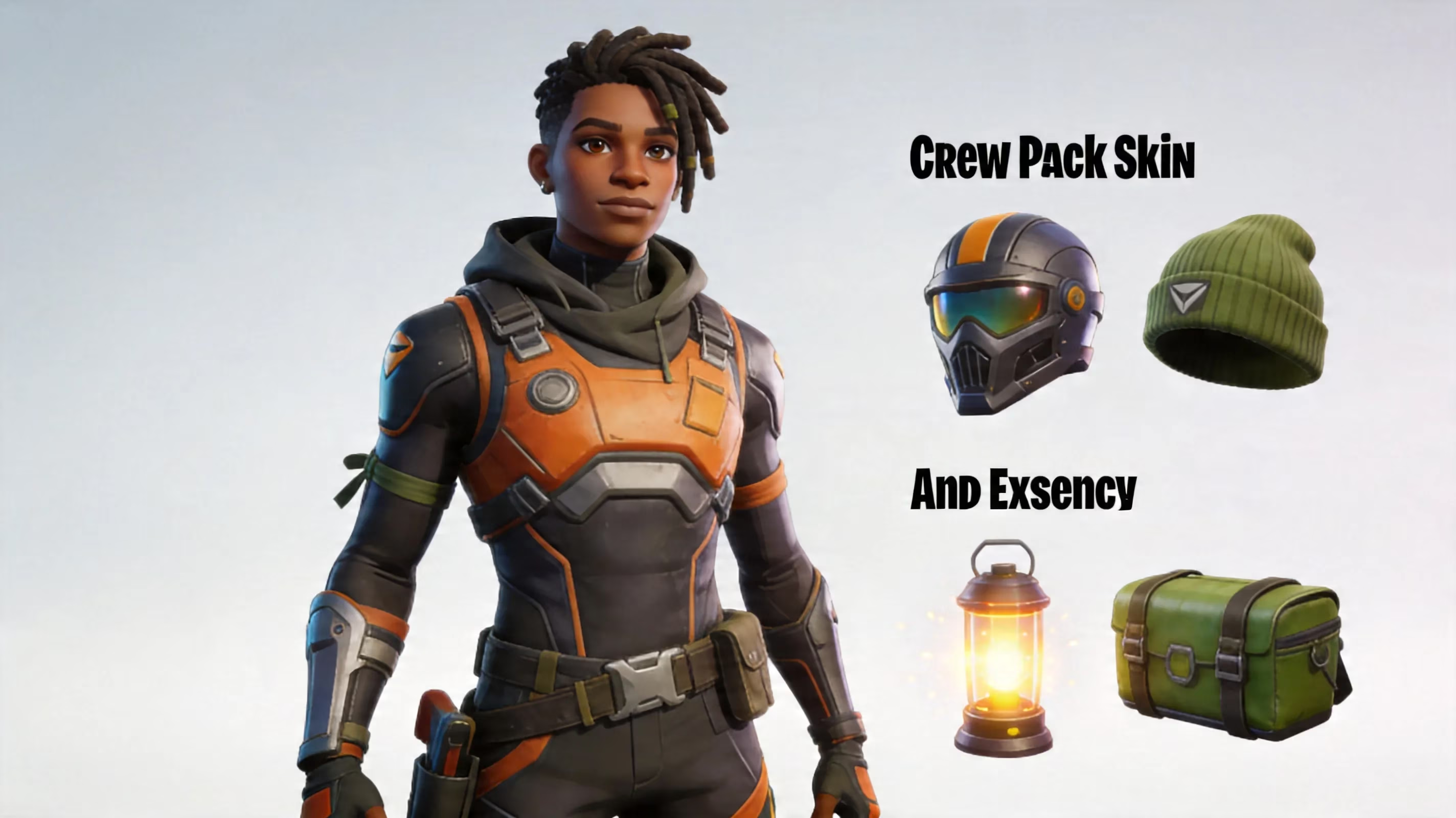
iPhone or iPad (App Store)
If you signed up for this subscription on an iPhone or iPad, you'll need to manage it through Apple’s subscriptions, not Apple via Fortnite or Epic. To cancel this subscription, get into the Settings app, select your Apple ID at the top then select Subscriptions – look for Fortnite Crew on the active list of subscriptions and select Cancel Subscription. Once selected, you can then confirm your cancellation.
Apple immediately cancels your subscription from billing; however, your Crew account remains active for the entire billing period.
Android or Store Billing Rule
For many players, when dealing with cancellations on Android, it is not always straightforward because it will depend upon which of the stores handled the purchase. Most likely, it has been purchased through Google Play Store and the procedure to cancel would be to open the Play Store and select the profile icon located at the top right corner of the screen. Once that is selected, select Payments & Subscription > Subscription and choose Fortnite Crew from the list that appears below. Once you have selected it, choose Cancel Subscription and confirm your decision.
Some players may have made their purchase through ONE Store (which is an option in some locations). In this case, go to the ONE Store app and go to the menu option called My > Settings > Subscriptions. There you will find Fortnite Crew, select it and choose Cancel Subscription, then select Schedule Cancellation. And, a less common example is if you made your purchase through the Samsung Galaxy Store. In this case, you will need to open the Galaxy Store and go to My > Settings > Subscriptions and there you would find Fortnite Crew and cancel it from that section.
Effects of Fortnite Crew Cancellation
It is just as important to understand what you will lose and what you will keep as to know how to cancel. Here's a quick reference:
| Item | After Cancelation |
|---|---|
| Crew Pack cosmetics already claimed | Perpetual on account |
| V-Bucks already granted | Perpetual on account |
| Battle Pass current access | Access continues until current billing period ends |
| Battle Pass progression | Continues normally until current billing period ends |
| Future Crew Packs | Will no longer be available after the current billing period ends |
| Future 800 V-Bucks monthly grant | Will no longer be provided after the current billing period ends |
| Auto-renew activated | Will be.de-activated the moment you cancel the subscription |
The good news is simple: Whatever you have already claimed will remain on your account. This includes Crew Pack outfits, back blings, pickaxes, wraps, emotes, as well as any V-Bucks that were already added to your account prior to cancellation. If you received your access to this month's Battle Pass through the Crew Pack, that will continue until the end of this month's billing cycle.
What will not be provided are the benefits that come with your Fortnite Crew subscription once your current billing period ends; after the current billing period expires you cannot receive your next Crew Pack, nor can you receive your next batch of 800 V-Bucks unless you re-subscribe.
Fortnite Crew Charges, Refunds and FAQ
Why did I get charged after I canceled my subscription?
Most often this is the result of attempting to cancel the subscription on an incorrect platform. Fortnite Crew has a strict policy of requiring a same platform subscription, meaning that if you subscribe through one storefront, are you cannot unsubscribe through another storefront, and you will still be charged every month until you cancel. If you are unsure about where to unsubscribe, check your credit card or bank statement for the merchant name associated with the charge to help determine where you originally subscribed to the service.
Will I get a refund for my Fortnite Crew charge?
In general, no. Epic Games has a strict no-refund policy for Fortnite Crew subscriptions. Canceling your subscription will stop any further payments from going through but will not reverse any past payments. In some cases where there is a clear billing error or you have never received any benefits from your subscription, you can contact either Epic support or the customer service of the storefront where you made your purchase to request a refund but refunds will be issued on a case-by-case basis and are not guaranteed.
What if I purchased from the wrong platform and now can't find my purchase?
There is no cross-platform cancellation route, so you will have to find the original storefront that processed the payment for your Fortnite Crew subscription and cancel from that source. If you've forgotten about which storefront you used to make your purchase, recent email transactions, or your bank statements will help you identify the merchant name. Merchant names like "Sony Interactive Entertainment" or "Microsoft Corporation" will help you determine how you made your original purchase.
Can I resubscribe to Fortnite Crew?
Yes, you are welcome to resubscribe to Fortnite Crew anytime you would like to do so. You can resubscribe either from the Passes tab in Fortnite lobby or from the supported storefront. If you resubscribe at the end of April, you will receive access to April's Crew Pack as well, but you will not receive any Crew Packs from previous months because Epic does not make Crew Packs back into stock through either the Item Shop or any other means.
To avoid any surprise bills when canceling your Fortnite Crew account, the key is to always cancel your Fortnite Crew account through the same platform you originally subscribed through. Users of Epic Games or PC can manage their subscriptions online, on the Epic Games website or through their Epic Games account. If you are an Xbox player, you can manage your subscriptions online or through the Xbox console's account settings. PlayStation users need to manage their subscriptions through the Payment and Subscriptions screen, while Nintendo Switch users must manage their subscriptions from the eShop or Nintendo's website. Finally, if you are a mobile user, you need to manage your subscription through either Apple subscription menus or the Google Android storefront associated with your mobile device.
Regardless of how you choose to manage your account, the result will be the same in that auto-renewal will be disabled, any benefits you currently have will continue to exist until the end of your billing period, and any previously collected items will continue to remain in your account. Before you leave the page, it may be a good idea to double check that the status reads Cancelled. Happy gaming, Loopers!