
Fortnite Name Change Guide
Discover how to change your Fortnite name and update your display name across Epic Games with easy, step-by-step instructions for every platform.
It's likely that if you had a Fortnite tag that sounded cool at the time but is now embarrassing, then you are interested in knowing how to change your Fortnite name. Essentially enough, your Fortnite display name (the one all players see in their lobbies, elimination feeds, etc.) is much bigger than just a small detail in your profile. Since Epic has a shared account system for all their games (Fortnite, Rocket League, and the Epic Games Store), when you change your display name, it will update across all connected Epic titles. As of 2026, changing the display name still occurs through the account level and outside of Fortnite, meaning you must change the name outside the game client.
The-Instructions-For-Changing-Your-Fortnite-Name-On-Epic-Games
Most players that want to know how to change their Fortnie name can find the most accessible method via the Epic Games account page. No matter what system you use (PC, Mac, mobile device or console), the display name is stored inside your Epic account instead of the application software on that specific platform.
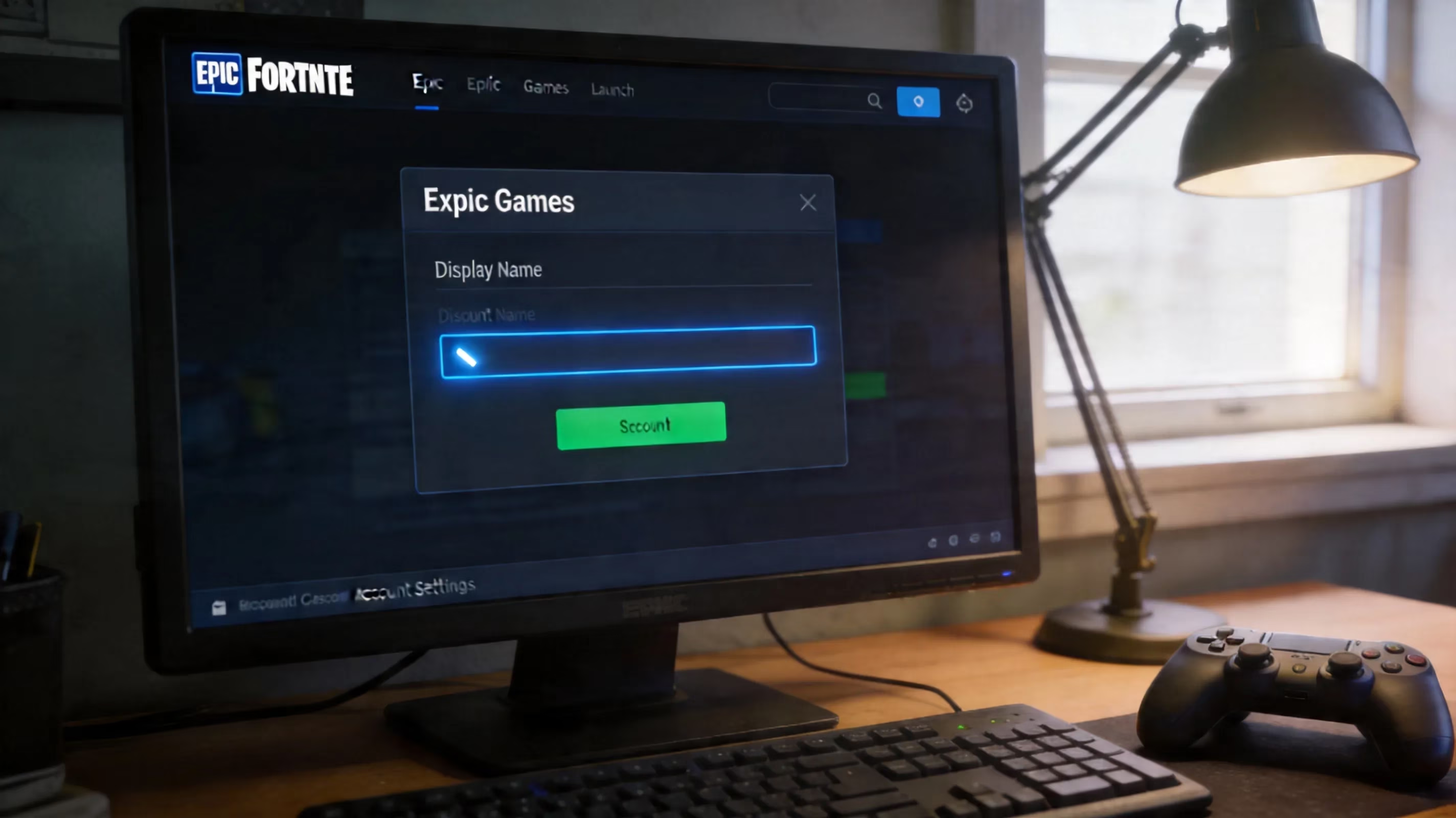
To start this process, go to epicgames.com, click on Sign In located in the upper right corner of the page, and sign into the account you purchased your Fortnite account under. Click on your avatar, select Account, and this will bring you into the Account Information page. You can find the field to enter a Display Name under the General tab, along with an icon of a pencil to edit/change the name. To put in a different name for your account click the icon, put in the name you would like to use, and if it passes the Epic naming rules click on Save Changes.
If your new name is visible after you click on Save Changes, then you will usually have to log back in after logging out of the Epic Games Launcher (or wherever you were playing Fortnite). When you log back into the Epic Games Launcher (or wherever you were playing Fortnite) after signing out, that should sync your new name to your HUD, squad panel and friend list. Sometimes you will have to wait a few minutes for your new name to show up everywhere, but this usually allows time for you to log back in.
Fortnite Name Change by Platform
While the Epic account portal is your primary avenue for changing your Fortnite display name, there are some differences in how the process works based on the platform you use to play Fortnite.
PC and Mac Players can use the Epic website or through the Epic Games Launcher flow explained above. In some cases you can go directly to the Epic account settings from the Epic Games Launcher (bottom left corner of the Launcher) without having to open a separate browser tab. The Epic website can be accessed through your iPhone or Android smartphone using the mobile web browser, the same as it would be used on your laptop or desktop.
PlayStation Players have a little different situation. If you play Fortnite on a PS4 or PS5 using the PlayStation Identity Layer, your Fortnite name is linked with your PSN Online ID. This means to change your Fortnite display name you will need to change your PSN Online ID through PlayStation settings, and not just by changing the Epic display name through your Epic account. To change your PSN ID on your PS4, you can do so either on your console or via the PlayStation Network website by looking in the following areas: Settings, Account Management, Account Information, Profile, Online ID. Your first name change is free but subsequent name changes will cost you about $9.99 if you are a PlayStation Plus member or slightly more if not. Once your PSN ID has been updated, your Fortnite account will automatically update as well.
Xbox accounts work similarly in that if your account is connected through an Xbox account and does not have an independent Epic account, your displayed Fortnite name will be identical to your Xbox Gamertag. You can change your Gamertag either on your Xbox console by selecting the Xbox button, Profile & System, Customize Profile, and Gamertag or through the Xbox website. Microsoft allows one free Gamertag change with later changes usually costing approximately $9.99. Once the two accounts sync up, your new Gamertag will also show up in Fortnite.
For Nintendo Switch accounts, if your Fortnite account is linked directly through Epic, there is no need to change your name again since the Epic version of your name will show up in Nintendo Switch. Nintendo does not have the same priority system that PlayStation does so changing your name with Epic is all that is needed.
Fortnite Display Name Change Guidelines and Cooldown
Epic requires a 14-day cooldown between changes to Fortnite display names. When creating a new display name for Fortnite, you must wait until after the 2-week countdown is over to be able to edit that name again. Epic has done this to ensure players cannot easily change who they are when they find new partners and допомогти вставити нові правила у 2026 році.
| Правила | Деталі |
|---|---|
| Мінімальна довжина | 3 символи |
| Максимальна довжина | 16 символів |
| Дозволені символи | Літери, цифри, підкреслення, дефіси, пробіли |
| Заборонений зміст | Непристойна мова, наслідування, порушення торгової марки |
| Частота змін | Один раз на кожні 14 днів |
Одним з найважливіших моментів є не плутати ім'я відображення з ідентифікатором для входу. Ідентифікатор для входу - це лише електронна адреса, яку ви використовуєте для входу до Epic, а при зміні вашого імені Fortnite цей ідентифікатор не змінюється взагалі. Проте інші користувачі не можуть бачити цю електронну адресу. Ваше ім'я відображення - це лише ім'я, яке відображається всім іншим. Це ім'я пов'язане з системою облікових записів Epic загалом, тому зміна імені відображення в Fortnite також змінить назву вашого облікового запису у Rocket League, вашій соціальній панелі Epic Games Store та будь-якому іншому сервісі, який отримує дані з того ж облікового запису. Зміна імені відображення не вплине на ваш ранг у арені, рівень облікового запису, статистику або історію матчів.
Проблеми з іменем Fortnite та їх вирішення
Декілька проблем часто виникає під час спроби перейменування для гравців Fortnite. Однією з найпоширеніших проблем є повідомлення «ім'я недоступне». Це лише означає, що інша особа вже бере на себе ту саме назву. If you have taken an online name and are trying to come up with a new one that is not taken, one of the easiest ways to do it is to change the way you write it by changing the case (for example, change "shadow" to "Shadow") to either an underscore, adding a short number or slightly misspelling your name but don’t forget epic doesn’t differentiate between lower case and upper case letters so doing this does not make your name unique since they do not consider case when determining if an online name is unique.
If there is an edit icon and it is locked then you are still in a cooldown period of 14 days since the last time you renamed yourself; there isn’t anything you can do right now other than wait out the 14 days. Epic doesn’t normally show a live countdown timer on the screen so you will likely have to guess based on when you last renamed yourself.
The wrong linked account can be a real hassle for a lot of console users. Sometimes after making changes to your account in Epic if Fortnite shows your old name, it will be because the identity layer for the console is taking priority (is what Epic recognizes) over what is seen in Fortnite. If you are on PlayStation you will need to change your PSN Online ID or in order for Epic to see that you changed your name in Fortnite if it does not match what is displayed by PSN. If you are on Xbox it may be worth it to know Microsoft needs about 30 minutes to synchronize your new Gamertag with their servers so give them some time. If your new Fortnite display name is showing correctly on the Epic website, but still not in-game, the solution is quite easy:
-
Exit Fortnite completely
-
Start Fortnite again
-
Sign into Epic again if necessary
-
If it continues to show incorrectly, clear the Epic Games Launcher cache and reboot your device.
In most cases, a refresh is all that is needed to push your updated display name through all the necessary channels.
The Most Popular Fortnite Display Name Ideas After Changing Your Display Name
After you have gotten the technical part down, now it is time to come up with a display name that will not be regrettable after two games played. When playing in squads, having a simple name that is easy to say is more important than many people will realize. If your teammates are unable to call out your name in battle because it contains random symbols or numbers, that is a definite disadvantage. Names that are relatively short (8 characters or less) tend to show up the best in the kill feed and can easily be identified at a quick glance.

If you do stream or create content, brand identity should be your top priority. Having your Fortnite display name match your Twitch, YouTube, or social media accounts makes it easier for viewers to follow you on all of the platforms. If the exact name is taken on Epic, a slight alteration like a single underscore or a single-digit append is typically enough to maintain your brand and prevent your name from becoming cluttered. Different users can use different styles for their play after renaming their Epic account.
-
Sweat-oriented names
-
Comedic nickname
-
Original Gangster-style handles
-
Anonymous Player Names
Again, I caution using personal information as your name is to be shown throughout the Epic family of games; hence, it is very unwise to do so.
Frequently Asked Questions : Fortnite Name Change
--Epic Accounts
-
Changing Your Name Doesn't Change Your Credentials?
-
No, your Epic account name only changes your public username, your Epic account email/password/two-factor authentication remains unchanged.
-
Do Your Skins, V-Bucks, and Stats Remain Unchanged?
-
Yes, all of those items remain where they were originally located. Changing your username/display name only affects the public name. Your V-Bucks balance, locker items, ranked players, and player earned Battle Pass Rewards will all still be in the same locations.
-
Does My Rename Affect Rocket League?
-
Yes, your rename will carryover to Rocket League as well since Rocket League also utilizes the Epic account system. Unfortunately if you want a different name in Fortnite than you do in Rocket League will not be possible either, as Epic uses the same display name for all games under their account system.
--Console Players
-
Do I Have to Pay for a Name Change if I'm a PlayStation Player?
-
Your first name change on PSN is free with Sony. After your first name change from Sony, you generally would be charged for subsequent changes ($9.99 USD); however, price will differ depending on where you live and what subscription you are using.
-
How Do I Use My Free Change Option as an Xbox Player?
-
Every Xbox player has 1 free gamertag change; however, after your first change, you will be charged ($9.99 USD) for each change after that. You can complete the first name change using your console, or access the change via the Xbox app or Bungie's website. Your Fortnite account will automatically be updated for you once Microsoft processes your name change.
-
How Do I Change My Name on the Switch, If I Am a Mobile Player?
-
Nintendo Switch users do not have any special charges for changing their Epic-linked account name. Users can complete this process on your mobile device using the same steps you would use to change it on the web. Users will still have a 14-day waiting period before they can change their name again and abide by the Epic User Agreement.
Conclusion
To summarize how to change your name in Fortnite by 2026 is rather easy once you find out which layer of account applies. Most mobile and PC players will go directly to epicgames.com and click 'Account' → 'General' → 'Display Name' then save your new User ID. PlayStation users will have to change their PSN online ID thru the Sony site; Xbox gamers will have to change their Gamertag through Microsoft. In any of these situations, you still will need to follow the same rules in regards to the 14-day naming rules for Epic.
So prior to creating and saving a new name, be sure you want to wait 14 days to change your display name again and spend some extra time to think about your choice.